

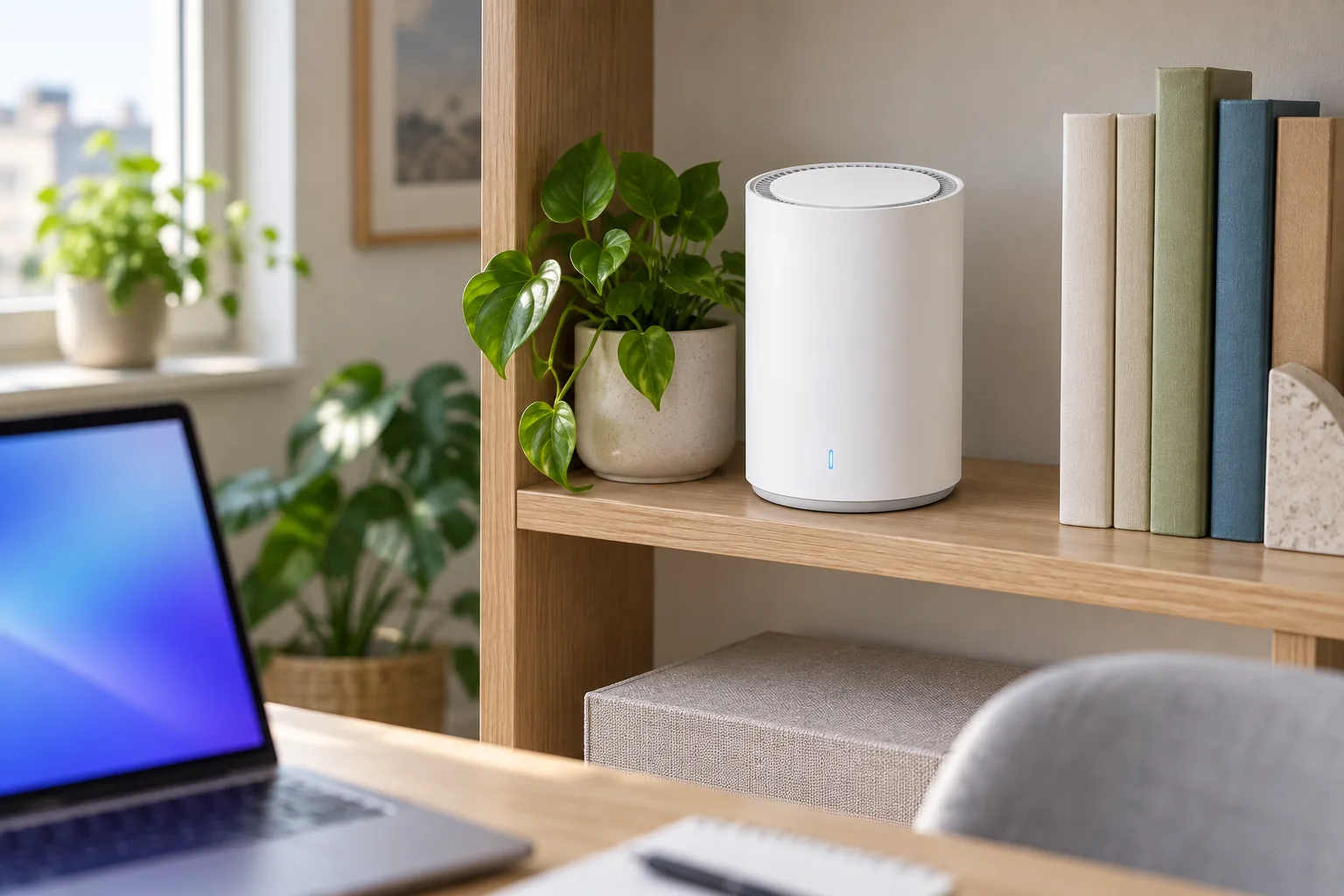
One router or three access points? The question comes up at the networking aisle every week, usually from someone whose Wi-Fi is fine in the living room and useless in the bedroom upstairs. Mesh can fix that, but it is not always the answer, and sometimes moving the router six feet does more than buying a second box.
We set up a Wi-Fi 7 router in a two-story house with a finished basement, measured the speed in every room, then added a second unit and measured again. Here is when mesh improves coverage, and when a well-placed router is enough.
What mesh actually does
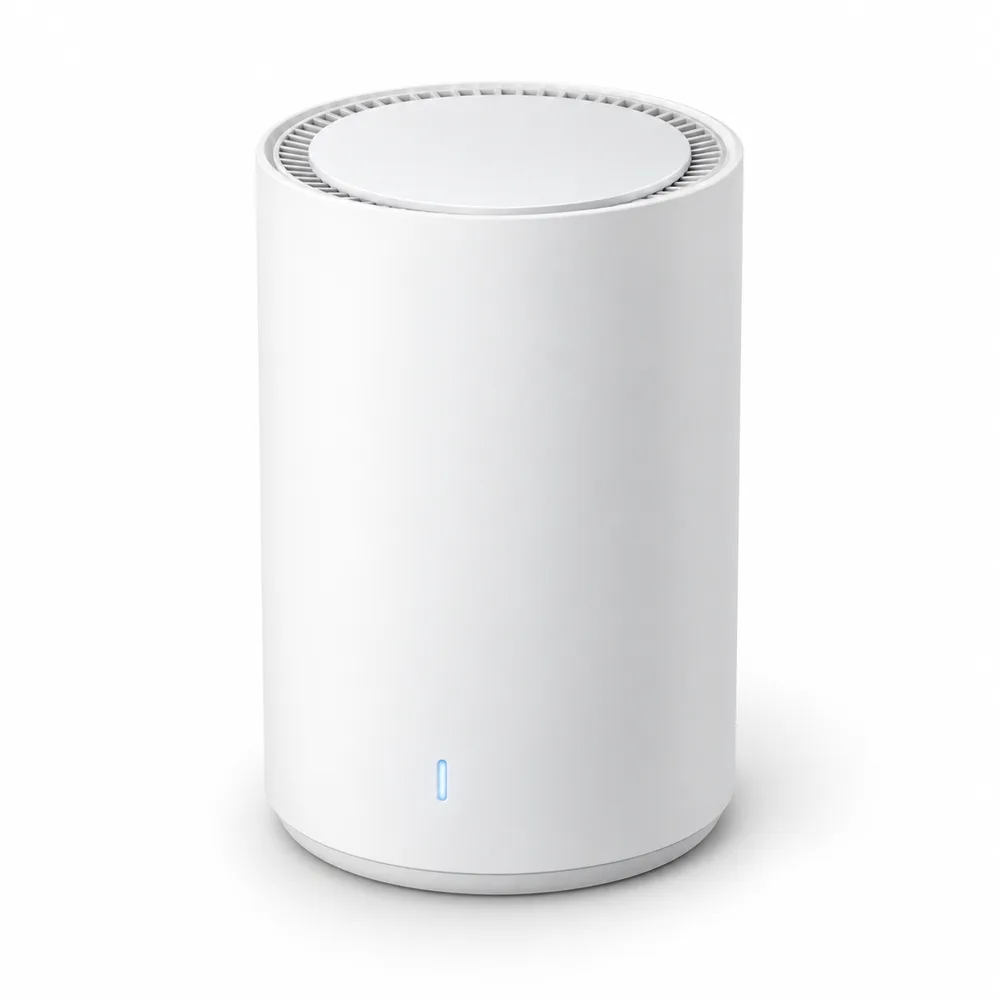
A mesh system is two or more units that share one network name and password. Your phone or laptop connects to whichever unit is closest and switches as you walk through the house, without a new network to pick or a password to type again. That is the whole idea: more transmitters, placed closer to where you use the internet.
It is different from a cheap range extender. An extender repeats the signal on the same channel it receives it, so every device behind it gets roughly half the speed. A mesh unit carries traffic back to the main router on its own link, and with Netra Mesh 7 that link can be an Ethernet cable into one of its two 2.5 GbE ports, which keeps the full speed available in the far room.
When one router is enough
Most apartments and many single-story homes do not need mesh. A single Wi-Fi 7 router covers them well, as long as it is not hidden in a cabinet at one end of the home. Stay with one unit if:
- Your home is one floor and under about 1,500 sq ft
- You can put the router near the middle, at shelf height, in the open
- The walls are drywall rather than brick, plaster or concrete
- Nobody works or streams from a garage, a basement or the back yard
Before you buy anything, try moving the router you have. In our test house the internet line came in at the front wall of the basement. Moving the router from the floor next to the modem to a bookshelf one floor up, on a 15 ft cable, lifted the speed in the upstairs office from 120 to 410 Mbps. That cost nothing.
Our test: one unit, then two
The house is about 2,400 sq ft on two floors plus a basement, with a 1 Gbps fiber plan. We measured with a Nordan Book 15, which has Wi-Fi 6E, three times in each spot at different times of day, and took the middle result.
| Room | One Mesh 7, living room | Two Mesh 7, cable between |
|---|---|---|
| Living room | 890 Mbps | 890 Mbps |
| Kitchen | 740 Mbps | 760 Mbps |
| Upstairs office | 410 Mbps | 820 Mbps |
| Basement | 95 Mbps | 530 Mbps |
| Back porch | 30 Mbps | 260 Mbps |
One unit already did well on the main floor. The second unit mattered in the rooms that were one floor and two walls away: the office doubled, and the basement went from buffering video calls to more speed than anyone in the house could use. Without the cable, using the Wi-Fi link between units, the office settled at 640 Mbps, still a clear step up.
“Count floors, not square feet. If you have a second story or a basement you use every day, that is where a second unit pays for itself.”
Marcus Hill, store associate, networking
One thing the table does not show: your devices do not need Wi-Fi 7 to benefit. The laptop we used tops out at Wi-Fi 6E, and so do most phones and TVs in a typical home. A Klarvis 55U8 streaming 4K needs about 25 Mbps; what it needs more is a signal that does not drop when the microwave runs. Wi-Fi 7 devices you buy later will use the extra headroom.
-
Shop the story
Netra Mesh 7 Wi-Fi 7 Router – BE11000, 2 × 2.5 GbE
$249Ships in 1 business day
View: Netra Mesh 7 Wi-Fi 7 Router – BE11000, 2 × 2.5 GbE
Where to put the units
Placement decides more than the spec sheet. We moved the second unit around the house for a weekend, and these four rules held every time:
- Start with the main unit in the open. On a shelf, not on the floor and not behind the TV.
- Put the second unit halfway, not at the dead spot. It needs a good signal from the first to pass on. In a hallway between the two zones is usually right.
- Use a cable if you can. If there is Ethernet in the walls, plug both units in through the 2.5 GbE ports and the link between them stops costing speed.
- Wire what does not move. A desktop or a gaming laptop such as Nordan Strike 16 next to a unit is better on a cable, and it leaves more air time for phones.
Our verdict: start with one Mesh 7 at $249, placed well, and live with it for a week. If a floor or a room is still slow, add a second unit there; it joins the same network in a few minutes from the app. Both units together are $498, which qualifies for 12 months 0% APR, and you can order online and pick up in store. If the slow spot is a home office, read our laptop guide as well: an older laptop with Wi-Fi 5 can be the bottleneck, not the router.
2 responses
Author
Can I add a second unit later, or do they need to be bought together?
Author
Later is fine. A second Mesh 7 pairs with the first in a couple of minutes in the app, and you keep the same network name.
Comments are closed.