

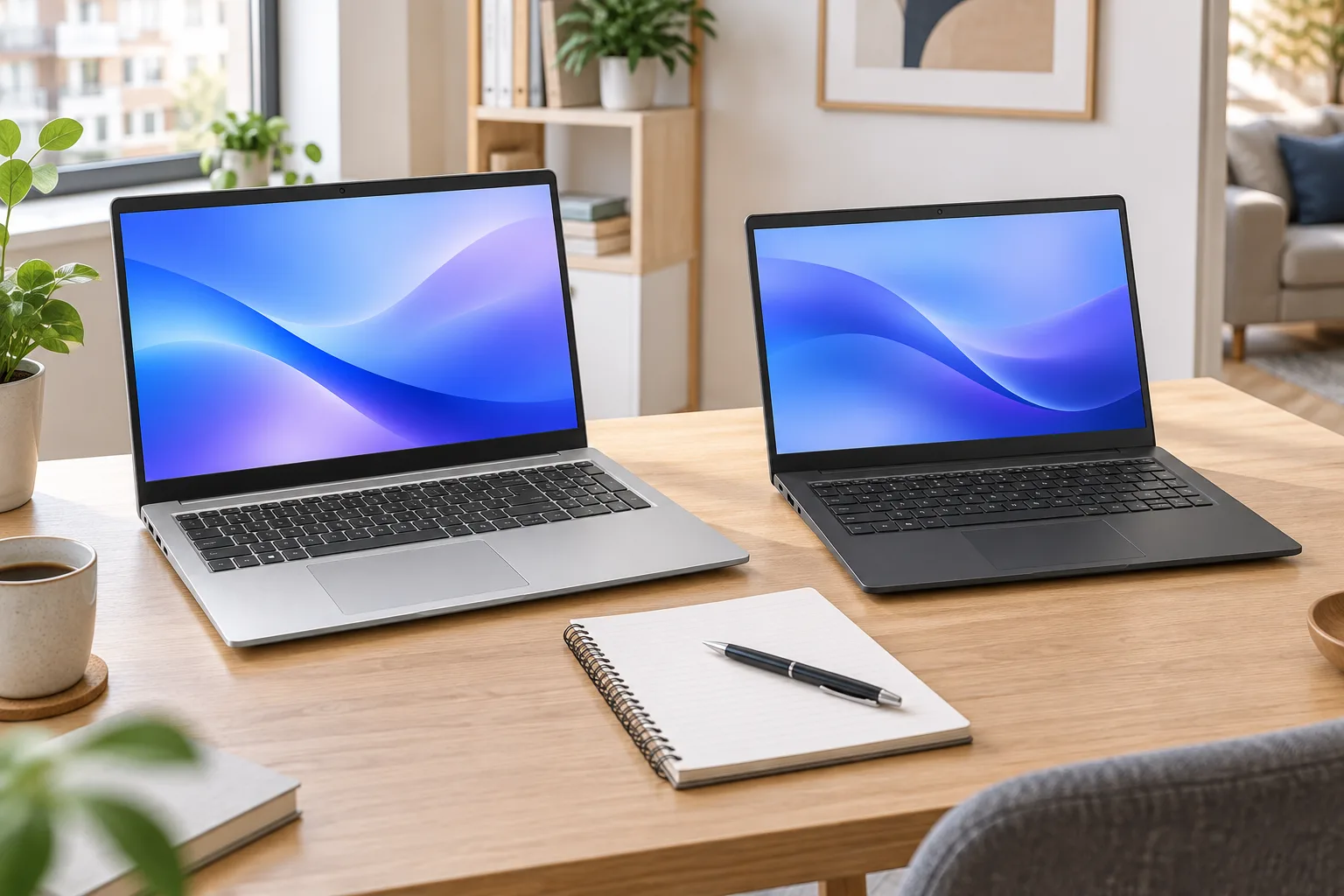
A laptop for work and school does not have to cost $1,500. Most of us write, browse, video call and work in spreadsheets, and a well-chosen mid-range machine handles all of that.
We collected the questions we hear most often in our stores and went through the spec sheet line by line. Processor, memory, display, battery and ports come first, then the things the spec sheet does not tell you. Along the way we say where the extra money goes, and where it is better kept in your pocket. Every laptop in this guide spent at least a week on our desks in Chicago, running the same mix of browser tabs, spreadsheets and video calls.
Processor and memory: how much you really need
Six or eight cores and 16 GB of memory is a sensible minimum today. 32 GB pays off with lots of browser tabs, virtual machines and photo editing.
- Office work and school: 6–8 cores, 16 GB RAM
- Photos, coding, multiple monitors: 8 cores, 32 GB RAM
- Gaming and video editing: a dedicated graphics card
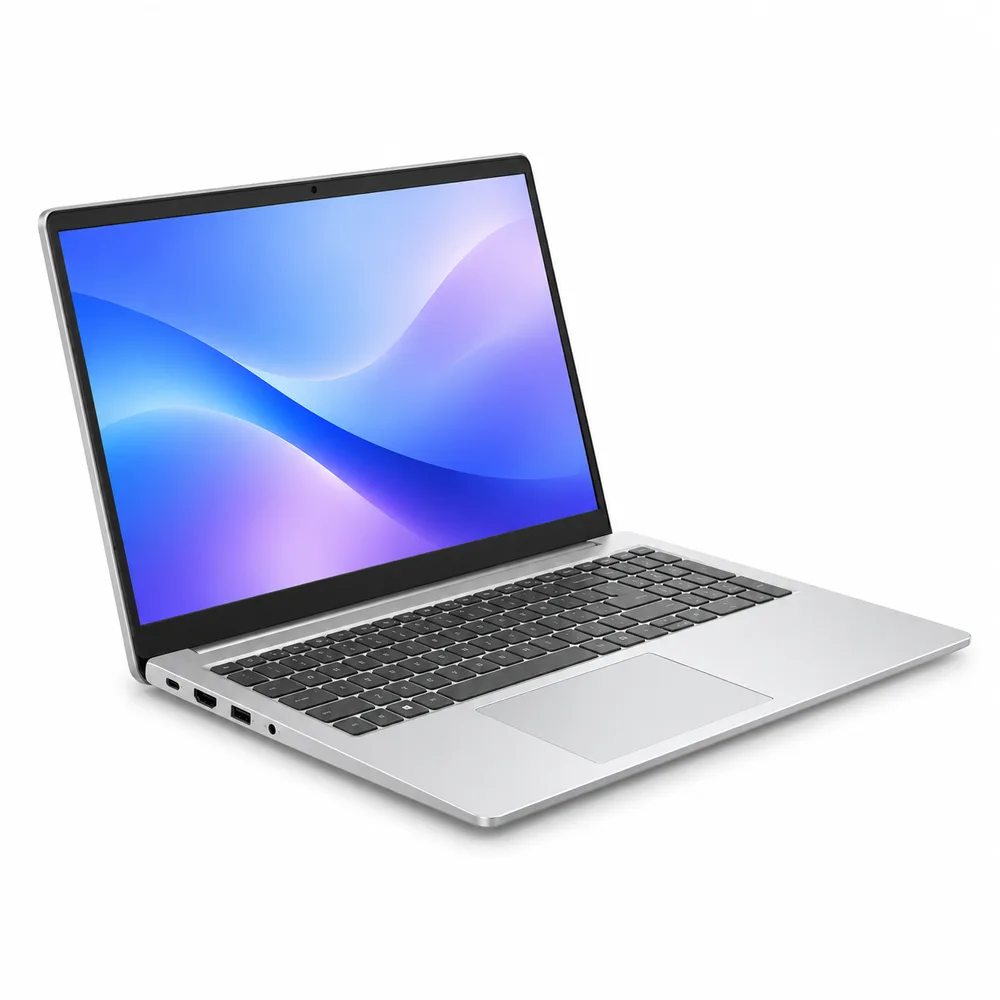
The processor is the line most people read first, and it matters least for this kind of work. The six-core Ryzen 5 in the Nordan Book 15 with 16 GB and the eight-core Ryzen 7 in the Nordan Book 15 with 32 GB open a 40-page document, a large spreadsheet and a video call in the same blink. The gap shows only when the laptop works for minutes at a time: exporting a 10-minute 1080p video took 6 min 50 s on the Ryzen 7 and 9 min 10 s on the Ryzen 5.
Memory is different. Every open tab, chat app and spreadsheet keeps a piece of it, and when it runs out the laptop starts swapping to the SSD and everything feels slow, however fast the processor is. With 30 tabs, Slack, Teams and two spreadsheets open, our test machines used 13.8 GB. That fits in 16 GB today, with little room left for the heavier websites and apps of the next few years.
Display: resolution, refresh rate and a matte finish
On a 15.6″ screen, the difference between Full HD and 2.8K shows in text. A matte panel makes it easier to work by a window, and 120 Hz makes scrolling smoother.
Put the two versions of the Book 15 side by side and open the same PDF. At 1920 × 1080, small type has slightly fuzzy edges; at 2880 × 1620 it looks printed, and after a full day of reading you notice it in your eyes more than on the spec sheet. A glossy screen shows richer colors in a dark room, but by a window it becomes a mirror. For a laptop that moves between a kitchen table, a classroom and an office, matte is the safer choice.
OLED is the one upgrade that changes how a screen looks rather than how sharp it is. The 14″ panel on the Nordan Air 14 has true blacks and vivid color, which makes photos and films look their best. For spreadsheets and documents it is a pleasure, not a necessity.
“We usually recommend spending more on memory rather than the processor. Memory decides whether a laptop slows down after two years.”
Rachel Owens, buying guides editor
Battery and ports
Look for a battery of 60 Wh or more and USB-C charging, so one charger works for your laptop and phone. USB-A and HDMI ports will save you from buying adapters.
Battery claims on the box are measured with the screen dimmed and nothing much running. Our test is closer to a school or office day: a browser loop with a 30-minute video call every two hours, screen at 150 nits, Wi-Fi on. The Book 15 and its 75 Wh battery lasted 10 hours 40 minutes against a rated 12 hours. That is a full day with some to spare, and the charger can stay at home.
Ports are about the things you already own. A wired mouse, a USB stick from a teacher and a projector in a conference room still use USB-A and HDMI. At a desk, a monitor with USB-C power delivery, such as the Klarvis 27Q, charges the laptop at 90 W and carries the picture over the same cable. If you are choosing a screen to go with the laptop, read 1440p or 4K for a 27-inch monitor first.
Storage, weight and the keyboard
A 512 GB SSD fills faster than most people expect once photos, a phone backup and a couple of large apps move in. 1 TB is the comfortable size for a laptop you plan to keep for four or five years. On the Book 15 the SSD is a standard M.2 drive, so you can start with what you have and add capacity later; our SSD upgrade guide shows how to check which one fits.
Memory is the opposite. The 32 GB Book 15 uses LPDDR5X memory, which is soldered to the board, like the memory in most thin laptops: what you buy is what you keep. That is the real reason behind Rachel’s advice above: storage can grow, memory cannot.
Weight and the keyboard are worth trying in a store. A 15.6″ laptop at 3.7 lb is fine between a desk and a car, and noticeable in a backpack all day on campus, where a 14″ at 2.6 lb makes more sense. A number pad helps anyone who lives in spreadsheets. Most people forget about the fans until a quiet room: under a sustained load we measured 36 dB from the Book 15 at the distance of your head, about the level of a quiet library.
| Laptop | Best for | Memory | Screen | Processor | Price |
|---|---|---|---|---|---|
| Book 15, Ryzen 5 | School, email, documents | 16 GB | 15.6″ Full HD, 60 Hz | Ryzen 5 8645HS | $649 |
| Book 15, Ryzen 7 | Office work, coding, photos | 32 GB | 15.6″ 2.8K, 120 Hz, matte | Ryzen 7 8845HS | $999 |
| Flex 14 | Notes by hand, tablet use | 16 GB | 14″ touchscreen, 360° hinge | Core Ultra 5 125U | $899 |
| Pro 14 | Office IT, work on the road | 16 GB | 14″ WUXGA, matte | Core Ultra 5 135U | $1,099 |
| Air 14 | Carrying every day | 16 GB | 14″ 3K OLED, 120 Hz | Core Ultra 7 155H | $1,299 |
The Nordan Flex 14 folds into a tablet and comes with a pen, which suits students who take handwritten notes or sketch. The Nordan Pro 14 has LTE, a fingerprint reader and the vPro management that company IT departments ask for. If games or video editing are on the list, skip ahead to a laptop with a dedicated graphics card, like the Nordan Strike 16.
-
Shop the story
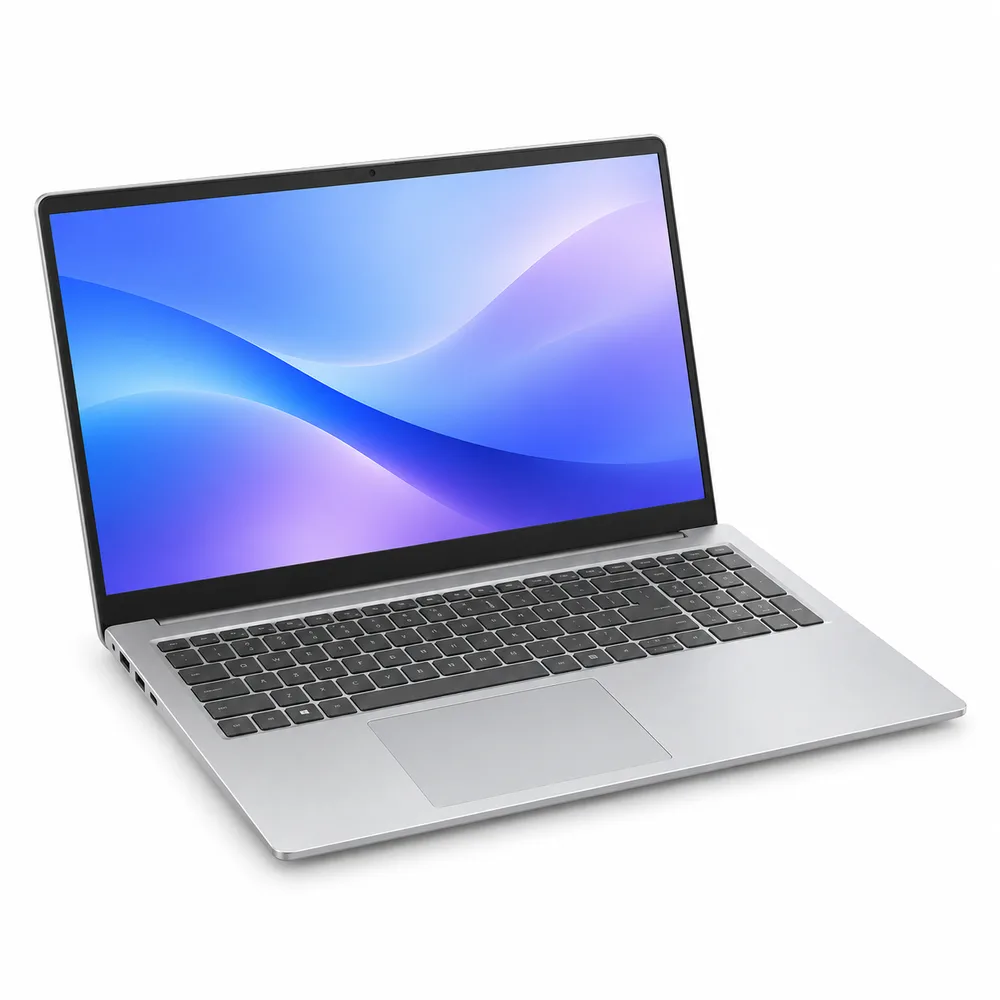
Nordan Book 15 Laptop – Ryzen 7 8845HS, 32 GB RAM, 1 TB SSD, 15.6″ 2.8K 120 Hz
Memory: 2 · Storage: 3
Original price was: $1,149.$999Current price is: $999.Ships in 1 business day
View: Nordan Book 15 Laptop – Ryzen 7 8845HS, 32 GB RAM, 1 TB SSD, 15.6″ 2.8K 120 Hz
What is not worth paying extra for
Some upgrades look good on the box and change very little for work and school. These are the ones we would skip:
- The fastest processor in the range: a step up in clock speed saves seconds on exports and nothing in a browser
- A graphics card for office work: it adds weight, heat and fan noise, and takes an hour or more off the battery
- 4K on a 15.6″ screen: 2.8K is already sharp at this size, and 4K costs battery life
- 2 TB of storage at checkout: if the SSD is a standard M.2 drive, adding one later costs less
Put that money into memory and a better screen instead. Spread over a laptop’s life, they are the two upgrades you notice every day. Orders over $199 can be paid over 12 months at 0% APR, which makes the 32 GB version an easier decision for a student budget. Whichever you choose, you can pick it up in store or get free next-day delivery.
Before you pay for anything, spend five minutes with a demo unit. A spec sheet cannot tell you how a laptop feels to use, and our display tables are there to be touched. When customers ask where to start, this is the routine our store associates walk them through. It settles more decisions than any benchmark:
- Type a paragraph. Check that the keys have a clear bottom and that the trackpad does not register your palm while you type.
- Open a long web page and scroll. At 120 Hz the text stays readable as it moves; at 60 Hz it blurs a little. Some people notice at once, others never do.
- Tilt the screen toward the store lights. That is roughly what a window behind you will do at home. A matte panel shows a soft glow, a glossy one a sharp reflection.
- Pick it up by one corner with the lid open. A stiff body does not flex or creak, and the hinge holds the screen still while you type.
- Count the ports you would use tomorrow. Your mouse, your monitor and your phone cable. If you need an adapter for one of them, that is fine; if you need three, look at another model.
Then ask the associate for the version you would actually buy, not just the one on the table. Display units often show the top configuration, and the screen on the cheaper version may be a different panel altogether, as it is between the two versions of the Book 15.
Quick answers
Is 16 GB enough for learning to code?
Yes, to start. An editor, a browser and a local web server fit comfortably. If you plan to run Docker, a database and several projects at once, 32 GB will save you from replacing the laptop in two years.
Do I need Wi-Fi 7 in a new laptop?
Not yet. Wi-Fi 6E, which the Book 15 has, is faster than most home internet plans. The router and where you put it matter more than the laptop; our guide to Wi-Fi 7 and mesh at home explains why.
Should I buy a tablet with a keyboard instead?
For notes, reading and email, a tablet like the Veyra Tab 11 with its keyboard cover is lighter and cheaper. For spreadsheets, school software and anything that needs a desktop browser, a laptop is still the better tool.

2 responses
Author
Is 16 GB enough for learning to code, or should I go straight to 32?
Author
16 GB is enough to start. If you plan to run Docker and several projects at once, 32 GB will save you from replacing the laptop in two years.
Comments are closed.