A new SSD is the cheapest way to give an older laptop more room and a few more years. It is also the upgrade we see come back to the store most often, unopened or with the box torn, because the drive did not fit. M.2 2280, PCIe 4.0 and a heatsink all sound like details until one of them stops the bottom panel from closing.
Before you buy a new drive, check three things: what kind of slot the laptop has, which length and generation it takes, and how much room there is above it. It takes ten minutes and a screwdriver. Here is the check we walk customers through at the computer counter.
Step 1: Find out what slot you have
Start without opening anything. The laptop’s model number is on a label on the bottom or in the system settings, and the manufacturer’s spec sheet usually names the drive. A line like the one on the Nordan Book 15‘s spec sheet, “1 TB SSD M.2 PCIe 4.0”, tells you everything you need: an M.2 slot, wired for NVMe, at PCIe 4.0 speed.
If the spec sheet only says “512 GB SSD”, look up the drive itself. In Windows, Device Manager lists it under Disk drives; search that model name and you will find whether it is NVMe or SATA, and which PCIe generation. One trap with laptops from around 2015 to 2018: some have an M.2 slot that only takes SATA drives. An NVMe drive fits that slot physically and is never detected.
Step 2: Match the length and the generation
The four digits after M.2 are the size in millimeters: 2280 is 22 mm wide and 80 mm long, the standard in most 14- to 16-inch laptops. Thin and small machines sometimes use 2242 or 2230, and a 2280 drive will not fit those. Look at where the screw sits at the end of the current drive; that is your length.
Then the generation. Every newer PCIe drive works in an older slot, just at the older slot’s speed:
| Slot | Top read speed | A PCIe 4.0 drive in it |
|---|---|---|
| SATA M.2 | about 550 MB/s | Not detected |
| PCIe 3.0 × 4 | about 3,500 MB/s | Works, at about 3,500 MB/s |
| PCIe 4.0 × 4 | about 7,500 MB/s | Works at full speed |
| PCIe 5.0 × 4 | about 14,000 MB/s | Works at full speed |
We put the Stor 2 TB in a 2020 15-inch laptop with a PCIe 3.0 slot, replacing a 256 GB drive. It read at 3,480 MB/s in a benchmark, about what that slot allows, and in a PCIe 4.0 desktop it reached 7,150 MB/s against its rated 7,300 MB/s. In daily use the laptop booted in 15 seconds instead of 18, and copying a 40 GB photo library took half the time. Do not pay extra for a PCIe 5.0 drive for a laptop; very few have the slot, and the drives run hot.
Step 3: Check the room above the drive
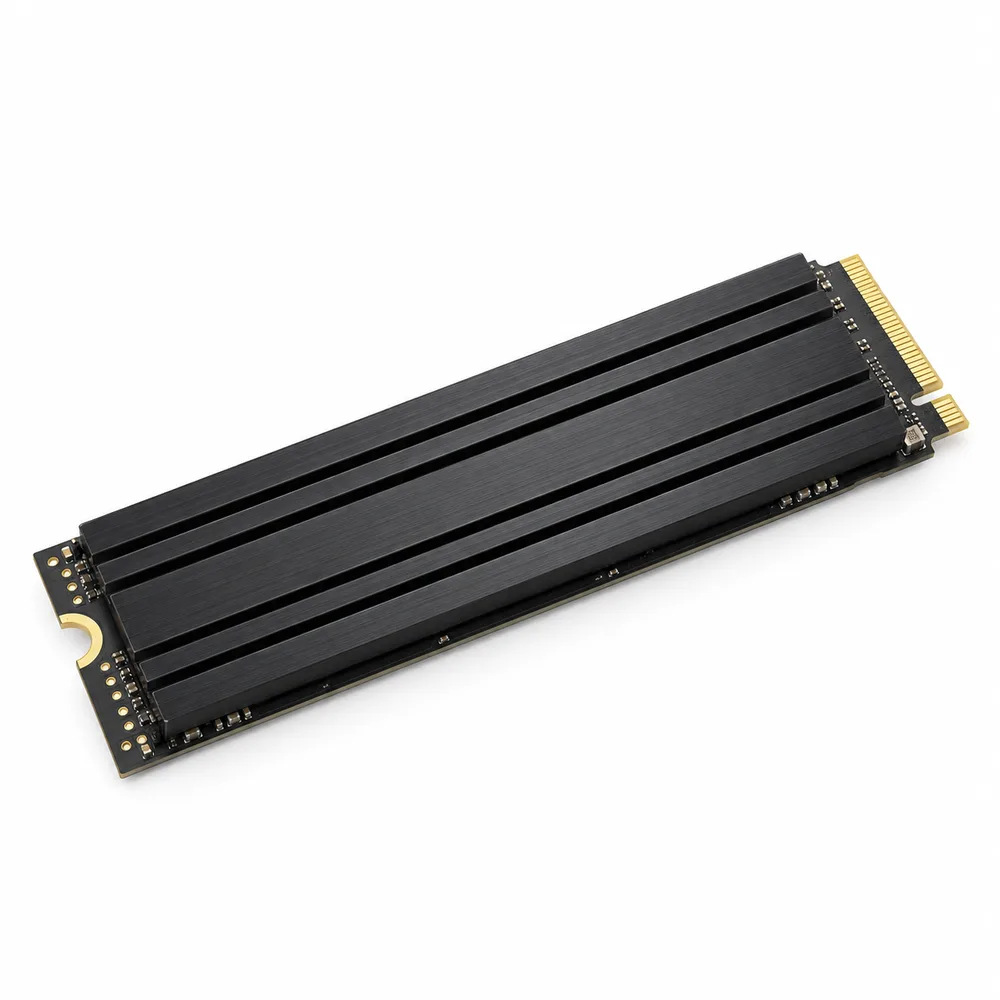
This is the step people skip. A bare M.2 drive is a thin board; a drive with a heatsink is several millimeters taller. Thin laptops often leave only a couple of millimeters between the drive and the bottom panel, sometimes filled with a thermal pad or a metal shield. Open the panel and measure the gap with a ruler or calipers before you order.
Our 15-inch test laptop had room, and the Stor fit with its heatsink on. A 14-inch ultrabook from the same year had about 2 mm, and the panel would not have closed. Gaming laptops such as Nordan Strike 16 are thicker and more likely to have space, and a desktop always does, which is where the heatsink earns its place: it keeps a busy PCIe 4.0 drive from slowing down when it gets hot. If your laptop is thin, choose a drive without a heatsink.
“Take the panel off before you buy, not after. A photo of the slot with a ruler next to it answers every question we would ask you at the counter.”
Kevin Park, store associate, computers
Before you open it up
- Back up everything you would miss, to the cloud or an external drive.
- Save the BitLocker recovery key if the laptop uses Windows device encryption. Without it you may be locked out of the old drive.
- Decide between cloning and a fresh install. Cloning needs a USB enclosure for the new drive; a fresh install needs a USB stick with the installer.
- Unplug the charger, shut down fully and keep track of the screws; they are often different lengths.
The swap itself is the easy part. On our test laptop it took 12 minutes from the first screw to the last: ten screws, a plastic pry tool around the edge of the panel, one screw holding the drive, and the new drive in at a slight angle before pressing it flat. Cloning 180 GB from the old drive over a USB enclosure took another 25 minutes. Afterwards, check in the system settings that the full 2 TB shows up; if it does not, extend the partition in Disk Management.
How big should you go? A 1 TB drive costs less, but photo libraries, games and phone backups fill it faster than most people expect, and you only want to open the laptop once. At $139 for the Stor, 2 TB is the size we recommend.
Which laptops are worth upgrading? One with a good processor and a small drive, like a Nordan Book 15 with 512 GB, gains the most from going to 2 TB. If the processor or the memory is the real limit, put the money toward a new machine instead; our laptop guide explains what to look for.
-
Shop the story
Stor 2 TB M.2 PCIe 4.0 NVMe SSD with Heatsink – up to 7,300 MB/s
Original price was: $169.$139Current price is: $139.Ships in 1 business day
View: Stor 2 TB M.2 PCIe 4.0 NVMe SSD with Heatsink – up to 7,300 MB/s